How to Watch CCTV Cameras on Your Mobile
Want to check your home, office, shop, or business security while you are away? Watch CCTV cameras on your mobile phone makes it easier to monitor your property from almost anywhere. With the right CCTV system, a compatible mobile app, and an internet connection, you can view live camera footage, check recordings, and stay informed about your property’s security.
Whether you have installed CCTV cameras at home or manage a commercial property, this guide explains how to connect your CCTV system to your mobile phone and fix common connection problems.
What Do You Need to Watch CCTV Cameras on Your Mobile?
Before connecting your cameras, make sure you have the following:
- CCTV camera system: Your cameras should support remote viewing, either directly or through a DVR or NVR.
- Internet connection: Your CCTV system needs an internet connection for remote access when you are away from the property.
- Smartphone: An Android phone or iPhone with enough storage to install the required app.
- Compatible mobile app: Most CCTV brands provide their own applications for viewing cameras remotely.
- Login details: You may need your camera account, device ID, username, password, or QR code to connect your system.
Once these requirements are ready, you can begin setting up mobile access.
How to Watch CCTV Cameras on Your Mobile Phone
Follow these simple steps to connect your CCTV cameras to your smartphone.
Step 1: Connect Your CCTV System to the Internet
First, ensure your CCTV cameras or DVR/NVR recorder are connected properly. If your system uses a recorder, connect it to your router using an Ethernet cable or a supported network connection. Check the recorder’s network settings and confirm that it has internet access. Without a working internet connection at the property, remote viewing may not work.
Step 2: Download the CCTV Mobile App
Open the Google Play Store on Android or the Apple App Store on your iPhone. Search for the official mobile application recommended by your CCTV camera manufacturer. Different CCTV brands use different apps, so check your camera or recorder’s manual before downloading one. Avoid unofficial applications that may put your privacy or device security at risk.
Step 3: Create an Account or Log In
Open the application and create an account if required. If you already have an account, sign in using your existing credentials. Some systems allow local viewing without an account, while others require cloud access or device registration. Follow the instructions provided by your CCTV manufacturer.
Step 4: Add Your CCTV Camera or Recorder
Look for an option such as Add Device, Add Camera, or Scan QR Code in the mobile app.
Depending on your system, you may need to:
- Scan the QR code displayed on your DVR/NVR or device label.
- Enter the device’s serial number or ID.
- Enter the required username and password.
- Complete any verification steps shown in the app.
Once the device is added successfully, your cameras should appear in the application.
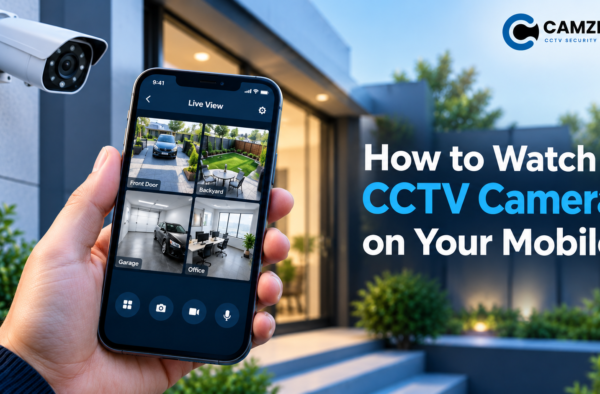
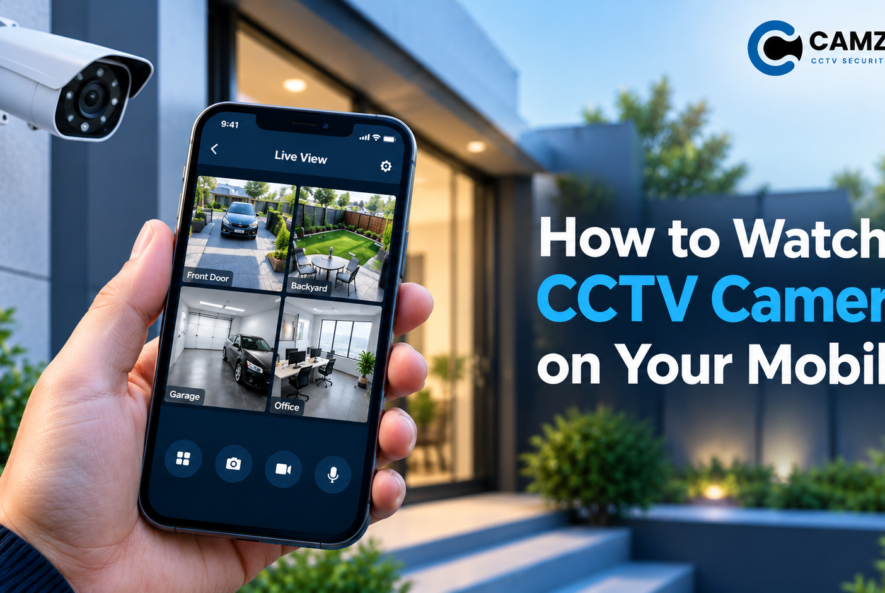
Step 5: View Live CCTV Footage
Select your connected device and choose the camera you want to view. You should now be able to watch live CCTV footage directly on your mobile phone. Many applications also support full-screen viewing, multiple-camera layouts, playback controls, and notifications. Available features depend on your camera model, recorder, app, and subscription.
Step 6: Access Recorded CCTV Videos
Want to check what happened earlier? Open the playback or recordings section in your CCTV app. Select the camera and date, then choose the required time on the recording timeline. Your system must have recorded footage available, and your recorder or camera must support remote playback for this feature to work.
Can You Watch CCTV Cameras Without Wi-Fi?
Yes, in some situations. However, it depends on where you are and how your CCTV system is configured. If you are at the property, you may be able to view cameras through a local network without an internet connection. Some systems also support direct connections or local viewing through a recorder.
If you want to watch CCTV footage while you are away from home, the camera system generally needs internet access at the property, along with a compatible remote-viewing setup. Your mobile phone can use mobile data or another internet connection instead of Wi-Fi. Remember that a camera’s Wi-Fi connection and its internet connection are not the same thing. A wireless camera can connect to your home router without necessarily having working internet access.
How to Watch CCTV Cameras on Android and iPhone
The basic setup process is similar for both Android phones and iPhones, although the mobile app interface may differ.
For Android users:
- Download the official CCTV app from Google Play.
- Sign in or create an account.
- Add your camera or recorder.
- Select the device to view live footage.
For iPhone users:
- Download the compatible app from the Apple App Store.
- Log in using your account details.
- Scan the device’s QR code or enter its ID.
- Open the camera view and select the required channel.
For both devices, ensure your mobile operating system and CCTV app are updated to supported versions.
Common Problems When Watching CCTV on a Mobile
Sometimes your cameras may fail to connect, show a black screen, or stop displaying live footage. Here are some common issues and their possible solutions.
CCTV Camera Is Offline
Check whether the camera, DVR, or NVR is powered on and connected to the network. Restart your router if necessary and confirm that your internet connection is working.
Incorrect Username or Password
Double-check your login details. If you have forgotten your password, use the official recovery process or contact your CCTV installer. Avoid repeatedly guessing passwords.
Live Video Is Loading Slowly
Slow internet speeds, weak Wi-Fi signals, or high video quality can cause delays. Try a more stable connection or reduce the mobile app’s streaming quality if the option is available.
CCTV App Cannot Find the Device
Confirm that you are using the correct app for your camera brand. Check the device ID, QR code, network settings, and account permissions.
Recorded Footage Is Not Available
Check whether recording is enabled and whether the hard drive or memory card is working correctly. Also confirm that your system supports remote playback and that recordings exist for the selected date and time. If these steps do not solve the problem, a professional CCTV technician can inspect your network settings, recorder, and camera configuration.
Security Tips for Watching CCTV Cameras Remotely
Remote CCTV access is convenient, but protecting your camera system is equally important. Follow these precautions to help keep your footage private.
- Use a strong password: Avoid simple or reused passwords for your CCTV account.
- Enable two-factor authentication: Use it if your CCTV app supports this feature.
- Update your system: Install official firmware and app updates when available.
- Use official applications: Download apps only from trusted sources.
- Limit account access: Give viewing permissions only to people who need them.
- Secure remote access: Use the manufacturer’s recommended remote-access method and avoid exposing recorder ports directly to the internet without proper security controls.
- Protect your privacy: Position cameras appropriately and follow applicable privacy and data protection requirements.
These steps can help reduce the risk of unauthorised access to your CCTV footage.
Why Choose Professional CCTV Installation?
Connecting CCTV cameras to a mobile phone may seem simple, but some systems require additional network configuration, recorder setup, or troubleshooting. Incorrect settings can prevent remote access or leave your system less secure. Professional installation helps ensure that your cameras are positioned correctly, recording settings are configured, and mobile viewing works as intended.
At Camzeno, we help customers with CCTV camera installation, DVR and NVR setup, remote monitoring configuration, and technical support. Whether you need a new surveillance system for your home, office, shop, or commercial property, our team can help you choose a suitable solution for your security requirements.
FAQs
1. Can I watch my CCTV cameras on my mobile from anywhere?
Yes. If your CCTV system supports remote viewing and has a suitable internet connection, you can usually access live footage from locations with internet access.
2. Do I need a separate app for my CCTV cameras?
It depends on your system. Most CCTV brands provide a compatible app, while some systems support approved third-party viewing software.
3. Can I watch CCTV cameras on two mobile phones?
Yes. Many CCTV systems allow multiple authorised users or devices. You may need to configure separate accounts or grant access through the main account.
4. Can I watch CCTV footage when the internet is down?
Remote viewing generally stops if the property’s internet connection is unavailable. However, local viewing and recording may continue if your system and network are configured to support them.
5. Why can’t I see my CCTV cameras on my phone?
Common causes include internet problems, incorrect login details, incompatible apps, device configuration issues, or power failures. Check these areas before contacting a technician.
Final Thoughts
Learning how to watch CCTV cameras on your mobile makes it easier to keep an eye on your property when you are away. By connecting your system to the internet, installing the correct mobile app, and following the setup instructions, you can access live footage and, where supported, recorded videos from your smartphone.
For reliable remote viewing, remember to keep your system updated, secure your login details, and check your internet connection if problems occur. Need help setting up remote CCTV viewing? Contact Camzeno for professional CCTV installation, DVR/NVR configuration, and technical support to help you monitor your property with greater convenience and confidence.