CCTV Camera Showing No Signal – Easy Fixes
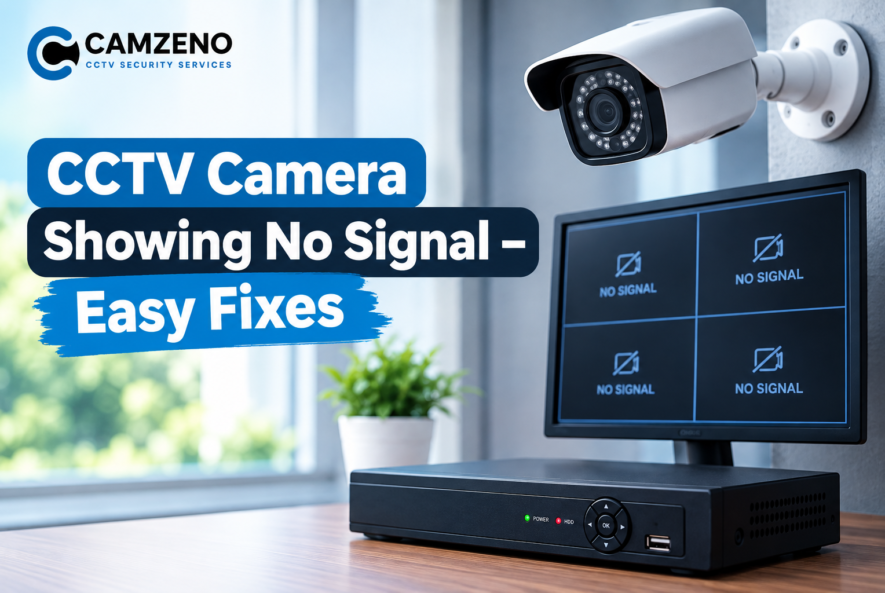
When your CCTV camera showing No Signal on the monitor, it can be frustrating, especially when you rely on your security system to protect your home, office, shop, or business. The good news is that this problem does not always mean your camera is damaged. In many cases, a loose cable, power issue, incorrect input source, or DVR/NVR setting may be responsible.
In this guide, we will explain the common reasons why a CCTV camera shows no signal and share easy troubleshooting steps to help you restore your camera feed.
What Does “CCTV Camera No Signal” Mean?
A CCTV camera displaying “No Signal” usually means the monitor or recording device is not receiving a video feed from the camera or recorder.
The exact cause depends on your security system. For example, an analogue CCTV camera may have a loose video cable, while an IP camera may have a network connection or PoE power issue. Before replacing any equipment, follow the troubleshooting steps below to identify the problem.
1. Check the CCTV Camera Power Supply
One of the most common reasons for a CCTV camera showing no signal is a power supply problem. If the camera is not receiving enough power, it may stop transmitting video to the DVR or NVR.
How to fix it:
- Check whether the camera’s power indicator or infrared lights are working, if applicable.
- Make sure the power adapter is securely connected.
- Inspect the power cable for cuts, loose connections, or visible damage.
- If you have a multimeter and know how to use it safely, check whether the power supply provides the required voltage.
- Replace a faulty adapter with a compatible power supply that matches the camera’s specifications.
Tip: If multiple cameras stop working at the same time, check the shared power supply, power distribution box, or recorder before troubleshooting each camera individually.
2. Inspect the CCTV Cables and Connections
Loose or damaged cables can interrupt video transmission between your CCTV cameras and recording equipment. This is particularly common in older systems or installations where cables are exposed to weather, movement, or accidental damage.
How to fix it:
- Turn off the relevant equipment before reconnecting cables.
- Check that the BNC connectors, Ethernet cables, and power connectors are securely attached.
- Look for bent pins, corrosion, cuts, or damaged insulation.
- Reconnect the cables carefully and restart the system if needed.
- Test with a known-working compatible cable if the issue continues.
Avoid pulling cables forcefully, as this can damage the connectors or internal wiring.
3. Check the DVR or NVR Connection
Your CCTV camera may be working correctly while the DVR and NVR are experiencing a problem. These devices receive camera feeds and display or record them. If the recorder is not functioning properly, one or more camera channels may show no signal.
How to fix it:
- Confirm that the DVR or NVR is powered on.
- Check the recorder’s status lights and screen for error messages.
- Inspect the camera connections at the back of the recorder.
- Restart the recorder using its normal shutdown procedure.
- Check the camera channel status in the recorder’s settings.
If the recorder displays an error or repeatedly disconnects cameras, consult its manual or contact a CCTV technician.
4. Select the Correct Monitor Input Source
Sometimes, the CCTV system is working correctly, but the monitor displays “No Signal” because it is set to the wrong input source. For example, if your DVR is connected through HDMI but the monitor is set to VGA, the CCTV feed may not appear.
How to fix it:
- Turn on your monitor and DVR/NVR.
- Press the Input or Source button on your monitor.
- Select the correct connection, such as HDMI 1, HDMI 2, or VGA.
- Check that the video cable is securely connected at both ends.
- Test another compatible cable or monitor input if necessary.
If the monitor displays the DVR interface but individual camera channels show no signal, the problem is more likely related to the camera, its connection, or the recorder configuration.
5. Troubleshoot IP Camera Network Problems
IP cameras rely on a network connection to communicate with an NVR or monitoring software. A disconnected Ethernet cable, faulty network switch, incorrect IP address, or network configuration issue can cause a camera to appear offline.
How to fix it:
- Check that the Ethernet cable is properly connected.
- Inspect the network switch or PoE switch for power and link indicators.
- Confirm that the camera and NVR are configured for compatible network settings.
- Check the camera’s online or connection status in the NVR interface.
- Restart the network equipment if appropriate.
- Replace a faulty Ethernet cable or test another compatible switch port.
For PoE cameras, verify that the switch or recorder can supply enough power for the connected cameras.
6. Check Camera Compatibility and Video Settings
A camera may show no signal if it is incompatible with the recorder or its video settings. This can happen after installing a new camera, replacing a DVR, or changing the camera’s resolution or video format.
For example, some analogue HD cameras support different formats, such as TVI, CVI, AHD, or CVBS. A recorder that does not support the camera’s output format may fail to display its feed.
How to fix it:
- Check whether your camera is compatible with your DVR or NVR.
- Review the supported resolution and video formats in the product manuals.
- Confirm that the camera channel is enabled.
- Check the video format or channel configuration where applicable.
- If you recently replaced the camera, verify that the new model supports your existing recorder.
Avoid changing advanced settings without recording the original configuration first.
7. Restart the CCTV System
A temporary software or communication issue can sometimes prevent the CCTV system from displaying video. Restarting the equipment may help restore the connection.
Follow these steps:
- Use the recorder’s normal shutdown procedure, if available.
- Turn off the relevant equipment safely.
- Check that the camera and network connections are secure.
- Power the equipment back on according to the manufacturer’s instructions.
- Allow the system to finish starting up and check the camera feeds.
Avoid repeatedly unplugging a recording device while it is writing footage to its storage drive, as this may risk data corruption.
8. Identify Whether the Camera or Recorder Is Faulty
If the previous steps do not solve the problem, perform a controlled test to determine which component is responsible.
- Only one camera shows no signal: Check that camera’s power supply, cable, connector, and channel.
- Several cameras show no signal: Investigate shared power, the recorder, the network switch, or common cabling.
- The monitor shows no signal from the DVR/NVR interface: Check the recorder’s video output, HDMI/VGA cable, monitor input, and recorder power.
- An IP camera appears offline: Check network connectivity, PoE power, and camera configuration.
- The problem returns repeatedly: Look for intermittent cables, overheating, insufficient power, or failing hardware.
If you swap camera connections for testing, do so only when the equipment supports it, and you understand the connections. Avoid mixing incompatible camera types or power supplies.
Common CCTV No Signal Problems and Solutions
| Problem | Possible cause | Recommended solution |
|---|---|---|
| One camera has no signal | Loose cable or faulty camera | Inspect its power and connections |
| All cameras are offline | Shared power or recorder issue | Check the power supply and DVR/NVR |
| Monitor shows no signal | Wrong input source or video cable | Select the correct input and inspect HDMI/VGA |
| IP camera is offline | Network or PoE issue | Check Ethernet, switch, and network settings |
| New camera does not display | Compatibility issue | Verify recorder support and video format |
| Signal drops intermittently | Loose wiring or overheating | Inspect connections and equipment ventilation |
When Should You Contact a CCTV Technician?
Basic troubleshooting can resolve many CCTV signal problems. However, professional assistance may be necessary if:
- The camera or recorder has visible physical damage.
- Power problems continue after checking compatible connections.
- Several channels fail despite working cables and power.
- The recorder repeatedly restarts or displays hardware errors.
- You suspect damaged wiring inside walls or ceilings.
- Your CCTV system needs advanced network configuration.
A qualified technician can test the equipment, identify faulty components, and restore your surveillance system without unnecessary replacements.
FAQs
1. Why is my CCTV camera showing no signal?
Your CCTV camera may show no signal because of a loose cable, power supply failure, incorrect monitor input, network disconnection, or an incompatible camera and recorder. Check the connections and power first.
2. Can a faulty HDMI cable cause CCTV no signal?
Yes. A damaged HDMI cable or incorrect monitor input can prevent the DVR or NVR interface from appearing on the screen. Try a compatible working cable and select the correct input source.
3. Why is only one CCTV camera showing no signal?
If only one camera is affected, the problem may be limited to its power supply, cable, connector, camera hardware, or recorder channel. Check these components before replacing the camera.
4. Why are all my CCTV cameras showing no signal?
When all cameras fail simultaneously, check shared power supplies, the DVR/NVR, network switches, and the monitor connection. A common equipment failure may affect every camera feed.
5. Will restarting my DVR fix the no-signal problem?
Restarting may resolve temporary software or communication issues. However, it will not fix damaged cables, faulty power supplies, incompatible equipment, or persistent hardware problems. Use the manufacturer’s recommended restart procedure.
Conclusion
A CCTV camera showing no signal does not always mean you need a new camera. Loose cables, insufficient power, incorrect monitor settings, network issues, and compatibility problems are common causes.
Start with the simplest checks: verify the power supply, inspect the connections, confirm the correct monitor input, and check the DVR/NVR status. If the issue continues, test the affected component or seek professional help.
Need reliable residential CCTV installation or troubleshooting? Camzeno can help you learn more about CCTV solutions for residential and commercial security systems.