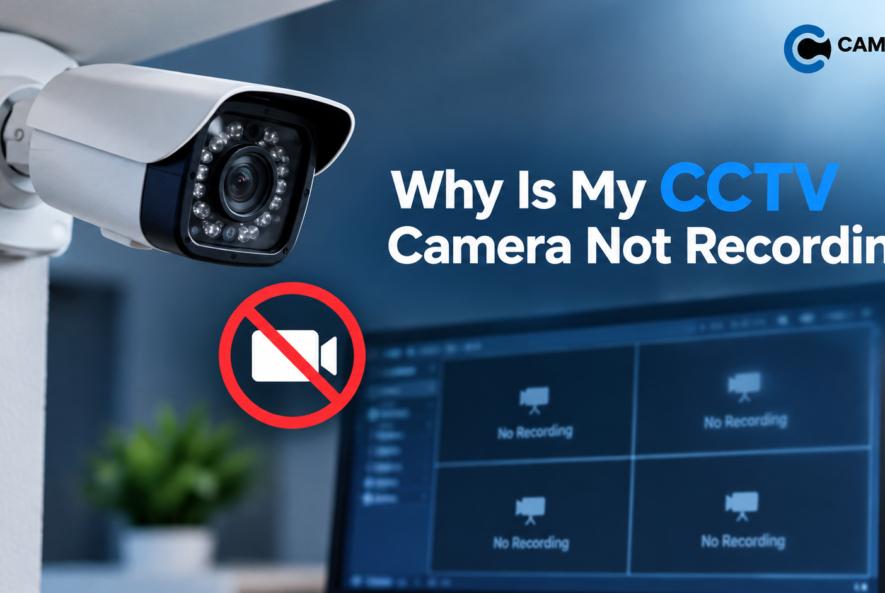
Why Is My CCTV Camera Not Recording?
A CCTV camera can give you peace of mind—until you check your footage and discover that your CCTV camera not recording. Whether the camera shows a live view but doesn’t save footage, records only sometimes, or has stopped recording completely, several issues could be responsible.
The good news is that many CCTV recording problems can be identified and fixed with a few simple checks. In this guide, we’ll explain the common reasons why CCTV camera not recording, how to troubleshoot them, and when you should contact a professional.
Why Is My CCTV Camera Not Recording?
CCTV cameras usually rely on several components working together, including the camera, DVR/NVR, hard drive, cables, power supply, and recording settings.
If any one of these has a problem, your system may continue showing a live camera feed while failing to save recordings. Here are the most common causes.
1. The DVR or NVR Is Not Recording
If your CCTV camera displays live video but there are no saved recordings, the problem may be with your DVR or NVR.
Check whether:
- The DVR/NVR is powered on.
- The camera appears correctly in the system.
- Recording is enabled.
- The storage device is detected.
- There are no recording errors or warnings.
- The correct date and time are configured.
Restarting the DVR/NVR can sometimes resolve temporary software or system issues.
2. CCTV Hard Drive Is Full or Damaged
Your CCTV system needs storage to save recorded footage. Most DVR and NVR systems use a dedicated surveillance hard drive.
If the hard drive is full and overwrite is disabled, the system may stop recording. A failing hard drive can also prevent footage from being saved properly.
Check your storage settings and look for messages such as:
- HDD Error
- HDD Not Detected
- No Storage
- Disk Error
- Recording Failed
If the hard drive is damaged, it may need to be replaced with a compatible surveillance-grade drive.
3. Recording Schedule Is Turned Off
Your CCTV system may not be configured to record continuously. Many systems allow different recording schedules, such as:
- 24/7 continuous recording
- Motion-based recording
- Scheduled recording
- Alarm-triggered recording
If the schedule is incorrectly configured, your cameras may only record during specific hours. Open your DVR/NVR recording settings and check whether the desired cameras are scheduled to record.
4. Motion Detection Is Not Working
If your system is configured for motion recording, it may not save footage unless movement is detected. Incorrect motion settings can cause missed recordings.
Check:
- Motion detection is enabled.
- The correct areas are selected.
- Sensitivity is appropriate.
- Detection zones cover the required area.
- The recording action is enabled after motion detection.
For example, if motion detection only covers part of a doorway, movement outside that area may not trigger recording.
5. Camera Has Lost Its Connection
A camera may appear offline or stop sending video to the recorder because of a connection problem.
Possible causes include:
- Loose network cable
- Damaged cable
- Faulty connector
- Weak Wi-Fi connection
- Network configuration problem
- PoE switch issue
- Power interruption
For wired CCTV systems, inspect the cable connections between the camera and DVR/NVR or network equipment. For Wi-Fi cameras, check whether the camera is still connected to the network.
6. Power Supply Problems
CCTV cameras need a stable power supply to operate properly. A damaged adapter, faulty power cable, loose connection, or insufficient power can cause the camera to turn off or repeatedly disconnect.
If multiple cameras stop working at the same time, check the power supply or central power source first. For PoE cameras, also check whether the PoE switch or NVR is supplying sufficient power.
7. Recording Settings Have Changed
Sometimes the camera itself is working perfectly, but recording settings have been changed accidentally.
This can happen after:
- A system reset
- Firmware updates
- Configuration changes
- Power interruptions
- Adding a new camera
- Changing the DVR/NVR
Review the recording configuration and make sure each camera is assigned the correct recording mode.
8. Date and Time Are Incorrect
Incorrect date and time settings can make it difficult to find recorded CCTV footage. For example, you may search for footage from October 8, while the recorder has incorrectly saved it under another date.
Check:
- Date
- Time
- Time zone
- Daylight-saving settings, where applicable
- NTP/time synchronization settings
Keeping your CCTV system’s time accurate is especially important when footage may be needed as evidence.
9. The Camera Is Recording, but You Are Searching Incorrectly
Sometimes the CCTV system is recording normally, but the footage cannot be found because the playback search settings are incorrect.
Before assuming that recording has stopped, check:
- The correct camera channel.
- The correct date.
- The correct time range.
- The correct recording type.
- The correct playback/storage location.
Try searching a wider time period to confirm whether recordings are available.
10. DVR/NVR Firmware or Software Problems
Outdated or corrupted firmware can sometimes cause recording and playback problems. If your hardware, storage, and cables appear to be working correctly, check whether the manufacturer has released a firmware update for your particular model.
However, firmware updates should be performed carefully. An incorrect update can cause additional problems. If you’re unsure, professional CCTV support is the safer option.
How to Fix a CCTV Camera That Is Not Recording
Before calling a technician, you can perform a few basic checks:
Step 1: Check the Power
Make sure the camera, DVR/NVR, and relevant networking equipment are powered on.
Step 2: Check the Live View
Confirm whether the camera is displaying live video. If there is no live video, investigate the camera’s power or connection first.
Step 3: Check Storage
Open the DVR/NVR storage section and confirm that the hard drive is detected and functioning properly.
Step 4: Check Recording Schedule
Make sure recording is enabled for the affected camera and that the correct schedule is selected.
Step 5: Check Motion Detection
If you’re using motion recording, verify that motion detection and recording actions are enabled.
Step 6: Check Cables and Connections
Inspect network cables, power connections, PoE ports, and other relevant connections.
Step 7: Restart the System
A simple restart can sometimes resolve temporary software or communication problems.
Step 8: Test Playback
After making changes, perform a test recording and check the playback to confirm that the system is saving footage correctly.
When Should You Contact a CCTV Professional?
If you’ve checked the basic settings and your CCTV camera not recording, the issue could involve the hard drive, DVR/NVR, wiring, power supply, network configuration, or camera hardware.
Professional assistance is recommended when:
- The HDD is not detected.
- Multiple cameras have stopped recording.
- The DVR/NVR repeatedly crashes.
- Cameras frequently go offline.
- Cables or connectors are damaged.
- The system has complicated network or PoE issues.
- Recording stops repeatedly after troubleshooting.
A professional can inspect the entire CCTV setup and identify the underlying problem rather than simply replacing individual components.
How to Prevent CCTV Recording Problems
Regular maintenance can help reduce unexpected recording failures.
Follow these simple practices:
- Check CCTV playback regularly.
- Monitor available storage.
- Keep the DVR/NVR firmware updated when appropriate.
- Inspect cables and connectors.
- Keep cameras and recording equipment clean.
- Check date and time settings.
- Test motion detection periodically.
- Replace failing storage drives promptly.
- Use suitable surveillance-grade storage.
- Schedule professional CCTV maintenance when needed.
FAQs
1. Why is my CCTV camera showing live video but not recording?
This can happen if recording is disabled, the recording schedule is incorrect, the hard drive is full or faulty, or the DVR/NVR has a storage problem.
2. How do I know if my CCTV hard drive is working?
Check the storage or HDD section of your DVR/NVR. If the system shows an HDD error, doesn’t detect the drive, or cannot save recordings, the hard drive may need inspection or replacement.
3. Why does my CCTV record only when there is movement?
Your system may be configured for motion-triggered recording. Check the motion detection settings and recording schedule if you want continuous recording.
4. Can a power problem stop CCTV recording?
Yes. An unstable or insufficient power supply can cause cameras, DVRs, NVRs, or PoE equipment to disconnect and stop recording.
5. What should I do if my CCTV still doesn’t record after troubleshooting?
If basic checks don’t solve the issue, contact a professional CCTV technician. The problem may involve the recorder, storage drive, wiring, power system, network, or camera hardware.
Final Thoughts
When your CCTV camera not recording, don’t immediately assume that the camera itself is faulty. The problem could be related to storage, recording schedules, motion detection, power, cables, network connectivity, or the DVR/NVR.
Start with the basic checks—power, live view, storage, recording settings, and connections. If the problem continues, getting professional CCTV support can help restore reliable recording and prevent important footage from being lost.
With a properly configured and maintained CCTV system, you can keep your property under reliable surveillance and have recorded footage available when you need it.